Integrations

Works on top of the systems your clients already use.

Read the chart, the journals and the bank lines from eleven accounting systems, or from any Excel or CSV file. Nothing is written back unless a manager turns it on.
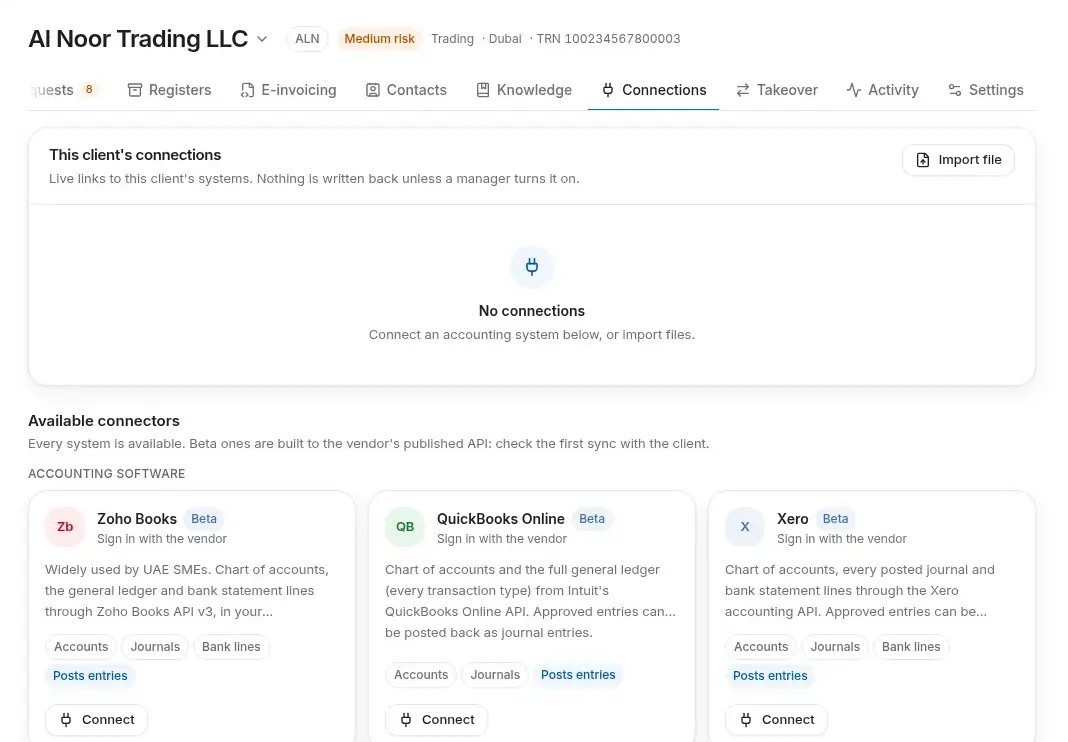
A client's connections: available connectors for Zoho Books, QuickBooks Online and Xero, each marked beta, with what they read and whether they can post entries.

Accounting software

Zoho Books

Beta
Sign-in
OAuth, in your Zoho data centre
Reads
Chart of accounts, general ledger, bank statement lines
Writes back
Journals

QuickBooks Online

Beta
Sign-in
OAuth with Intuit
Reads
Chart of accounts, the full general ledger
Writes back
Journal entries

Xero

Beta
Sign-in
OAuth with PKCE
Reads
Accounts, journals, bank statement lines
Writes back
Manual journals

Sage Business Cloud Accounting

Beta
Sign-in
OAuth with Sage
Reads
Ledger accounts and ledger entries
Writes back
Journals

TallyPrime

Beta
Sign-in
Tally's XML interface, optional gateway login
Reads
Groups, ledgers and vouchers
Writes back
Journal vouchers

Odoo (16 and later)

Beta
Sign-in
User login and API key
Reads
Accounts, posted entries, bank statement lines
Writes back
Journal entries

ERP

SAP Business One

Beta
Sign-in
Service Layer login
Reads
Chart of accounts, journal entries, bank statements
Writes back
Journal entries

SAP S/4HANA

Beta
Sign-in
Communication user or OAuth
Reads
G/L accounts and journal entry items by company code
Writes back
Journal entries

Microsoft Dynamics 365 Business Central

Beta
Sign-in
Microsoft Entra ID (OAuth)
Reads
Accounts and general ledger entries
Writes back
Through a dedicated journal batch

Oracle NetSuite

Beta
Sign-in
OAuth with PKCE (renewed weekly for now)
Reads
Accounts and posting lines
Writes back
Journal entries

Oracle Fusion Cloud ERP

Beta
Sign-in
Integration user over HTTPS
Reads
Account combinations and posted journal lines
Writes back
Read only

Every connector is in beta: built to the vendor's published API and tested on recorded responses, and being proven on sandbox accounts before any live client is connected. Product names and trademarks belong to their owners; vendor logos are not shown.

How a connection works

  1. 01

    Connect

    Sign in with the vendor, or enter the keys it issues. Credentials and tokens are stored encrypted and never shown again.

  2. 02

    Sync

    The chart is read every run and journals incrementally, hourly or daily. An unbalanced entry is skipped and listed, never half-imported.

  3. 03

    Confirm the mapping

    Each account's place on the statements is suggested with a confidence. Below 80%, a person confirms it, once; it is reused on every sync.

  4. 04

    Post back, only if allowed

    Write-back is off by default. A manager turns it on, and entries post only when a person approves the posting gate.

Files, inboxes and databases

Excel and CSV

Any layout with English or Arabic headers: map the columns once and it remembers. A dry run checks the file before anything is imported.

Email intake

A forwarding address for each client, so statements and invoices land on the right file.

Client portal

Clients answer requests, upload documents and approve their details, in Arabic or English.

Beta

Database connector

For Marsad: read-only views in your PostgreSQL database, read on a schedule, never written. SQL Server is next.

Your system is not on the list? If it exports Excel or CSV, it already works. Tell us which system your clients use most and we will consider it for the next connector.

Contact

See it on one of your own clients.

Send one anonymised client and your own final figures. We run it through Marsad Finance and sit with you for 30 minutes to compare, line by line.

Limited pilot places for UAE firms and finance teams.